Using the tinyGTC with PTP hardware clocks
The tinyGTC is a delightful little device released towards the end of 2025. It turns out that the tinyGTC is very useful for working with precision network timing. This post is aimed at people who have a tinyGTC and are interested in precision timing, but may not be familiar with what is possible as regards synchronizing computer clocks.
Typical NTP stratum-1 setups connect the PPS output of a GPS to a serial port or GPIO pin, which limits accuracy to the microsecond range. The tinyGTC and GPS generally is capable of much greater accuracy, but taking advantage of this requires a different way of connecting the PPS output to a computer, which takes advantage of hardware designed for use with PTP (Precision Time Protocol). Specifically, it requires an ethernet controller with a PTP hardware clock (PHC) that has pins, sometimes called Software Defined Pins (SDPs), that can be used for PPS input and PPS output. This allows synchronization with an accuracy in the tens of nanoseconds. Although PHCs are designed primarily for use with PTP, the chrony implementation of NTP allows PHCs to be used with NTP to achieve similar accuracy.
A tinyGTC connected to a PHC can be used in two different ways:
- connecting a PHC to the PPS output of a tinyGTC allows the tinyGTC to provide time to a PTP server (often called a grandmaster)
- connecting a PHC to the PPS input of a tinyGTC allows the tinyGTC to measure how accurately a PTP client is synchronized
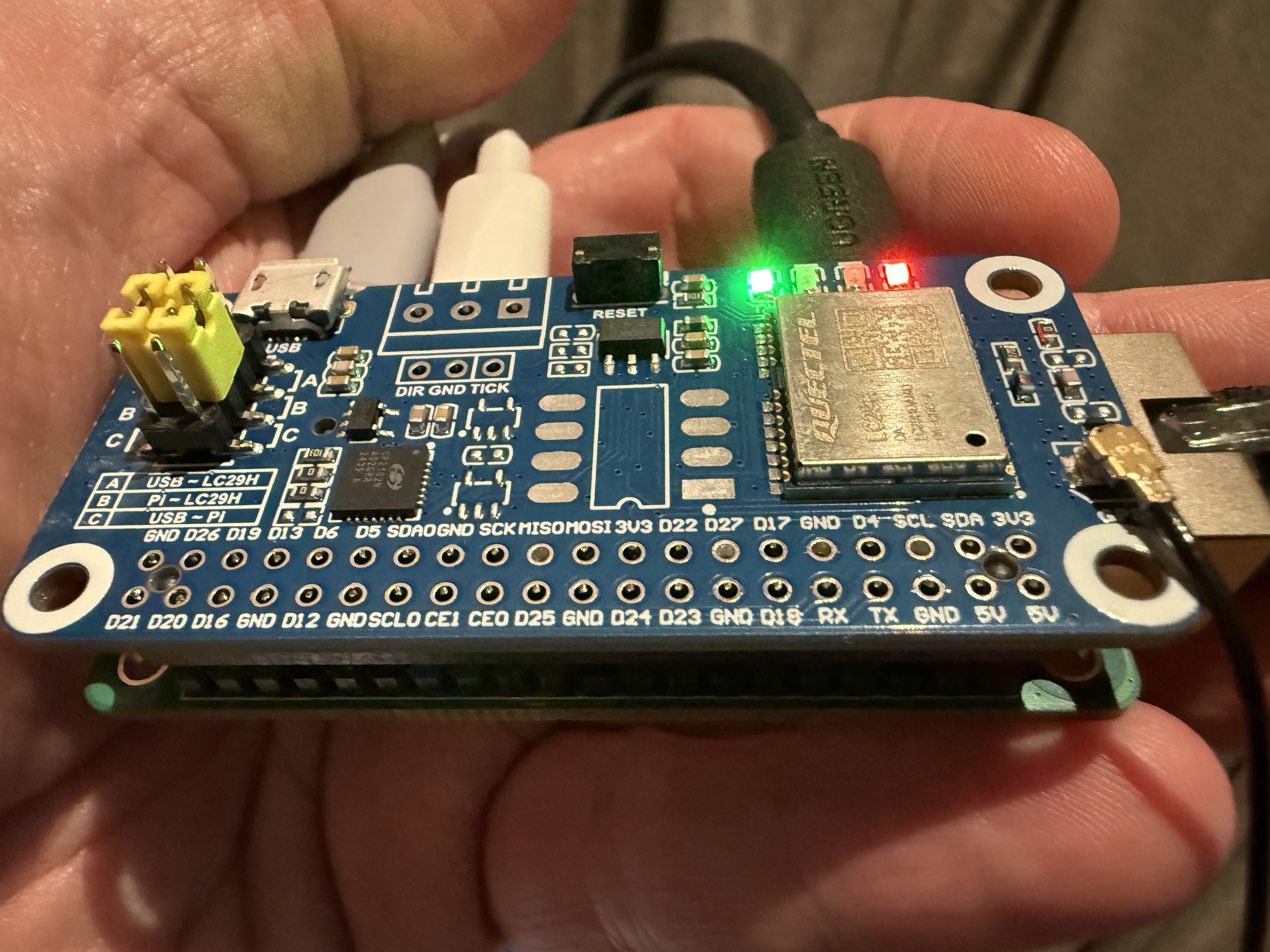
There are two suitable inexpensive ethernet controllers: the Intel i210-T1 and the one on-board the Raspberry Pi CM4/CM5. (The one on-board the Raspberry Pi 5 is not suitable.) The Intel i210-T1 can be used in a PC; the Raspberry Pi CM4/CM5 require a separate IO board. In both cases, this works only with Linux.
Fortuitously, the 3.3V PPS signal level used by the tinyGTC is exactly what the SDPs on these ethernet controllers expect. To connect them up, you need a special cable which has an SMA connector on one end and a pair of Dupont female leads on the other. You can buy these for a few dollars on eBay or AliExpress: search for “SMA Dupont test cable”. The SMA end can be male for direct connection to the tinyGTC, but for a more robust setup it’s better for the SMA end to be a female bulkhead connector: this bulkhead connector attaches to a hole in the case or a wifi bracket, then the SMA male-male cable that comes with the tinyGTC is used to connect from the bulkhead connector to the tinyGTC.
My SatPulse project provides software and documentation to make it easy to take advantage of the capabilities of PHCs for precision network timing. It includes detailed guides on hardware setup both with the CM4/CM5 and with the i210.
TinyGTC is still relatively new, and I did find a few issues, but the developer is very responsive to bug reports, so I am hopeful everything will be resolved. The testing described here was done with firmware version 1.023.
Providing time to a PTP server
For providing time to a PTP server, the tinyGTC needs to be set up as follows:
- GPS disciplining the internal oscillator
- Enable aligned PPS output on the OUT connector (this needs tinyGTC firmware at least 1.023)
- GPS through mode (so NMEA messages from the GPS are available over USB)
Two physical connections are needed:
- an SMA cable connecting from the OUT on the tinyGTC to the SMA-Dupont cable which is connected to the SDPs of the PHC
- a USB cable connecting from the tinyGTC to a USB port on the host computer
The SatPulse setup guide explains how to set up the software side of things.
When editing the satpulse.toml configuration file, you will need to specify the serial speed and the serial device.
A tinyGTC exposes three USB serial devices, usually /dev/ttyACM0, /dev/ttyACM1 and /dev/ttyACM2.
In my tests, the one that passes through the GPS output is /dev/ttyACM1.
You need the one with interface number 02, i.e. cat /sys/class/tty/ttyACM1/device/bInterfaceNumber should show 02.
You can check if you have the right one by using satpulsetool gps -d /dev/ttyACM1 -s 115200;
it should say Packet formats detected: NMEA.
So how does a tinyGTC compare to using a GPS module directly? On the positive side, being a GPSDO rather than just a GPS means that much of the short-term jitter is smoothed out, and also gives some holdover capability. There are very few GPSDOs available that tick the same boxes as tinyGTC: relatively inexpensive, 3.3V PPS, aligned PPS, and access to GPS output (the BG7TBL CM55 is the only other one I know of).
On the negative side, the tinyGTC’s GPS module is single-band (L1 only); this limits its ability to compensate for ionospheric effects, which can introduce phase inaccuracies of tens of nanoseconds over a 24 hour cycle. Also SatPulse does not (yet) have support for the CASIC protocol used by the tinyGTC’s GPS module, so you cannot use satpulsetool gps to configure it.
Measuring PTP synchronization accuracy
The main point of the tinyGTC is to be a time counter, and this can be used with PHCs to measure synchronization accuracy. There is only one other inexpensive device that I know of that provides this capability, which is the TAPR TICC, but that needs a separate 10Mhz reference.
A PHC without PPS input/output SDPs is sufficient for a client to be able to synchronize to a PTP server with high accuracy. Such PHCs are very common: for example, the Raspberry Pi 5 has such a PHC. But if you want to be able to measure the synchronization accuracy, then you need a PHC with an SDP with PPS input/output capability, just as is needed for a PTP server, such as a Raspberry Pi CM4/CM5 or Intel i210.
In order to do measurements, the tinyGTC needs to be set up as follows:
- GPS disciplining the internal oscillator (same as when providing time to the PTP server)
- make Counter A DC-coupled with a trigger level of 2V
- measure Channel A against the internal oscillator
You also need to physically connect the SDP on the PHC of the PTP client to the A connector on the tinyGTC (in the same way as was described for the OUT connector above).
On the PTP client you need to do two things:
- use ptp4l to synchronize the client to the server
- configure the PHC to output a PPS signal; you can use satpulsetool sdp to do this; on a Raspberry Pi CM4/CM5, the command would be simply
satpulsetool sdp -o eth0
You can do this at the same time as using tinyGTC to provide time to the server. (So you would need two CM4/CM5s or other suitable PHCs and two SMA-Dupont cables.) In this configuration, the same time is being provided to the PTP server and to the reference against which the PTP client is being measured, so you are mostly measuring how well PTP is working. (It will work much better with a direct back-to-back connection than going through a non-PTP aware switch.)
You can also measure the client against a PTP server with an independent source of time. In this case, you would be measuring how accurately your entire PTP setup is synchronizing a client to UTC.
It is also possible to compare the relative synchronization of two clients by connecting one to input A on the tinyGTC and one to input B. For some applications what is important is not the absolute accuracy of the synchronization to UTC but the synchronization of clients relative to each other. You can set things up to have lines showing A against the GPSDO, B against the GPSDO and A against B.
Detailed tinyGTC setup instructions
Enable GPS disciplining of internal oscillator
- Tap REFERENCE
- Tap REFERENCE
- Select INT GPS
- Tap BACK
Enable PPS output on OUT connector aligned to disciplined oscillator
- Tap OUTPUT
- Tap ALIGNED PPS
- Wait for it to say “Touch screen to continue”
- Tap screen
Enable GPS Through Mode
- Tap CONFIG
- Enable ADVANCED MENUS
- Tap BACK
- Tap REFERENCE
- Tap SETTINGS
- Tap GPS THROUGH
Make Counter A DC-coupled with trigger level of 2V
- Tap COUNTER
- Tap SOURCE
- Select A
- Select TRIG LVL
- Tap 2
- Tap ENT
Measure Channel A against disciplined oscillator
- Tap MEASUREMENT
- Tap MEASURE
- Tap PHASE
- Select PHASE
- Tap AGAINST NCO
- Select NCO FREQ
- Tap 1
- Tap x1